
Note: This is a pending feature now in beta testing
which will be released as part of Rev 3.20 in April.
Contact us if you wish to participate in this testing.
In this article we discuss controls SNIP provides to record data sent back from a connected NTRIP Client to the SNIP NTRIP Caster. This feature was first released in SNIP Rev 3.20 and is available on all models of SNIP (including the free Lite model).
The primary use case for this feature is a deployment that needs to capture data from rover devices (NTRIP Clients) for later post-processing. Common examples include telemetry and field data from precision agriculture devices, streams of NMEA $GGA position estimates for precise path plotting, any other NMEA message content, or any other text or binary formatted data which is desired to be captured. Using this feature your SNIP Caster becomes a basic data logging warehouse for any field data you care to send back to it,
The recording (as well the specific defaults used) can be set for each individual User Account and not every User Account need to make use of the feature. The general recording controls are organized in their own tab below the various user restrictions tabs, which is part of the general User Account setup dialog. This tab in the dialog is shown below.
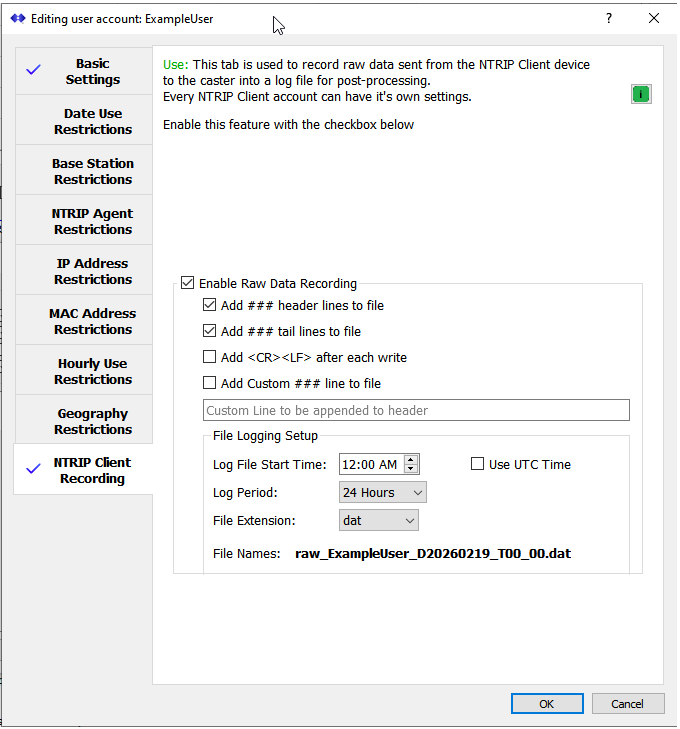
Dialog Controls
The dialog controls themselves are fairly simple and described next.
A basic on/off check box (labeled Enable Raw Data Recording) controls the use of this feature for the User Account that is currently being edited.
The next several checkboxes control the comments and meta data which may be added to each data file. Hint: If your use case requirements are to have no such data (for example, if you need to create a binary file that will be understood and processed by another program) then simply Uncheck all of these checkboxes.
The File Header
Each new file starts with a header similar to the example shown below when the “Add ### header…” check box has been checked.
The lines starting with “###” can be considered simple comments. But the lines starting with “#” contain various meta data information about the User Account connection that you may wish to parse and extract and then process in some way.
The File Tail
Each file ends with a comment line like the ones in the example text below. This is enabled when the “Add ### tail lines to file” checkbox has been checked.
Adding <CR><LF>
Some files may need this appended to the file lines for readability or for syntax processing. These two chars are added to each write call when the “Add <CR><LF>…” checkbox has been checked. Note that in low bandwidth marginal TCP/IP connections that are very poor, this option can also cause additional unwanted <CR><LF> content as well.
Add a Custom Comment
The checkbox “Add Custom ### line…” provides a method to append the provided text comment in the line that follows to the header in each file. This can be used to add unique content to the produced files for that specific user. An example is shown in the section Example File below using the text “My custom line is added here”.
File Naming
The file name is automatically created by appending the User Account name and the start date/time of the file to the text “raw_”. This file name is updated every time a new file is created for the user, based on the log duration you have set in the combo. The file type (txt, dat, csv, etc.) follows the selected file extension in that combo. The date and time value used can use either the local host machine time zone or can use UTC time (by convention many GNSS files use UTC as a common time zone). The date is preceded with “D” while “T” precedes the time (when present). A representative example is shown at the bottom of the dialog as the settings are changed.
The created files are saved into the folder …/data/SNIPlogs/ alongside the weekly console log files. Typically this path is set to be: C:\Program Files (x86)\SNIP\bin\data\SNIPlogs
All files follow the same naming pattern of:
raw_<UserAccountName_D<date>_T<time>.<fileType>
Aside: It has been decided to remove the start time control in the final release as it does not add any useful value. That will be done before production release.
Aside: All file start times are aligned with the clock. In other words, with a file duration of 15 minutes the resulting raw log files always start at either the top of the hour, or at the 15, 30 or 45 minute mark. Files with a duration of 2 hours always start at the top of even numbered hours, etc.
Example File
The below is just a very short raw data file containing only NMEA $GGA sentences as an example.
### Raw NTRIP Client Data from user account: aaaUserA
### All the data which the client sends back to the Caster
### is written to this file for port-processing which you may need to do.
### Lines starting with '###' are comments.
### Lines starting with '#' contain useful meta information about the user.
###
# Connection Start Time: Thursday, February 19, 2026  at  11:49:36 AM Pacific Standard Time (local time)
# File Start (long): Thursday, February 19, 2026  at  11:49:36.308 AM Pacific Standard Time
# File Start (short): 2026-02-19  11:49:36
# File Duration: 02:00:00 (H:M:S)
# User Account: aaaUserA
# User Id: UA056530
# Customer Account: Admin Account (user's owner)
# Customer Id: CA000000
# Connected to Base: SCSC (at file start)
# Comment: My custom line is added here.
# Data Starts
$GPGGA,194936.02,3407.6637498,N,11749.5273171,W,1,00,1.0,288.671,M,-33.512,M,0.0,*75
$GPGGA,194941.02,3407.6638826,N,11749.5273100,W,1,00,1.0,286.218,M,-33.512,M,0.0,*70
$GPGGA,194946.11,3407.6630311,N,11749.5273050,W,1,00,1.0,282.568,M,-33.512,M,0.0,*72
$GPGGA,194951.06,3407.6630310,N,11749.5273050,W,1,00,1.0,282.567,M,-33.512,M,0.0,*7C
$GPGGA,194955.99,3407.6630310,N,11749.5273051,W,1,00,1.0,282.567,M,-33.512,M,0.0,*7F
$GPGGA,195001.43,3407.6630310,N,11749.5273051,W,1,00,1.0,282.567,M,-33.512,M,0.0,*71
$GPGGA,195006.35,3407.6630310,N,11749.5273051,W,1,00,1.0,282.567,M,-33.512,M,0.0,*77
$GPGGA,195011.27,3407.6630310,N,11749.5273051,W,1,00,1.0,282.567,M,-33.512,M,0.0,*72
$GPGGA,195016.22,3407.6630310,N,11749.5273051,W,1,00,1.0,282.567,M,-33.512,M,0.0,*70
$GPGGA,195021.16,3407.6630310,N,11749.5273051,W,1,00,1.0,282.567,M,-33.512,M,0.0,*73
$GPGGA,195026.09,3407.6630310,N,11749.5273051,W,1,00,1.0,282.567,M,-33.512,M,0.0,*7A
### User Raw Data, end of file. User:aaaUserA, UaNum:UA056530
$GPGGA,195124.04,3407.6630311,N,11749.5273050,W,1,00,1.0,282.568,M,-33.512,M,0.0,*7B
$GPGGA,195128.97,3407.6630311,N,11749.5273050,W,1,00,1.0,282.568,M,-33.512,M,0.0,*7D
$GPGGA,195133.90,3407.6630310,N,11749.5273051,W,1,00,1.0,282.567,M,-33.512,M,0.0,*7F
$GPGGA,195138.86,3407.6630310,N,11749.5273051,W,1,00,1.0,282.567,M,-33.512,M,0.0,*73
### User Raw Data, end of file. User:aaaUserA, UaNum:UA056530
Note the meta information about the user, the base, and the connection found in the lines that start with “#” in the above.
In the example file above the client disconnected at about the time 19:50:26 (the last time stamp in UTC in the NMEA data). It then reconnected and briefly began sending further data at about 19:51:24. The lines staring with “### User Raw Data, end of file” followed by more data denote such re-connection events. A new file is only started when the connection time has reached two hours (the file duration that was set for this example file).
Concluding Remarks
- Use this feature only when needed as it does cause a noticeable load on the overall processing when multiple logged file must be completed and then the next file is started (typically at the moment the log duration time is reached). Also, using a local fast hard-drive is best. Do not use various “long term storage” drives which many Virtual Machines (VMs) hosting services may provide which are, by design, slow.
- Consider setting up an FTP site at the location you save the files to allow easy access by other parties and by any automated processing jobs you may create. This is also a convenient way to automate deleting older files as they accumulate.
- For recording raw Base Station data, simply right click on the base station slot and select Log Raw Data. If you will be doing this routinely and converting the files to RINEX, this RINEX article may also be of interest to you.
- File records are recorded immediately after the SNIP NTRIP Caster has sent back the “200 OK” reply (or “ICY 200 OK” in the case of NTRIP Rev1 clients) to indicate connection acceptance. All data sent to the Caster after that point is recorded (the file is created at the moment the first data is seen). Note that some Rev1 style NTRIP Clients incorrectly send the first NMEA $GGA sentence as part of the connection header. This additional line is correctly processed by SNIP (for NEAR base connections, for geographical restrictions, and for user positions) but is not present in the log file. Please consult the document RTCM SC-104 document NTRIP Client Devices / Best Practices for additional advice and recommendations concerning how to construct a fully valid NTRIP Client.
- Keep in mind that SNIP’s AVL tab also provides a simple way to track and monitor the location and movement of the connected NTRIP Clients. Many deployments use that method to build their own real time graphical mission control style display systems.